Contents
- Index
- Previous
- Next
Setting and Running a Schedule:
Setting up the timers.
We'll go through an example that could run a school bell system. In the real world you'd set launch parameters for each alarm to run a program that sounded the bell but for this example we'll just be using the PC sounds.
Make sure Options>Alarm defaults is set to PC Sound at least.
Make sure File>Auto start is unchecked.
School starts at 9:00AM and finishes at 4:30PM so we need at least 7:30 minutes for the maximum time span.
Click the down arrow right of the 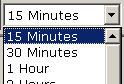 drop down list on the toolbar and select 8 hours from the list.
Press Ctrl+F on your keyboard; this expands the display to fit the screen width.
We need 7 timers: School starts (this doesn't need a timer), Start morning break, Finish morning break, Start lunch, Finish lunch, Start afternoon break, Finish afternoon break and School finishes.
Click the  button. If this is the first time you've done this you'll be presented with a dialog telling you how to start a sequence, click OK to close the dialog. Click the
  button. You should now have 7 timers in the window and the progress bar should have 'Stopped' on it.
Left mouse down over the first timer and drag until the label above reads 1:30 (as we're going to schedule the sequence to start at 9:00AM this would be 10:30AM. Right click over it, select 'Title' type in 'Start morning break'. Left mouse down over another timer and drag it to 1:45 (we're assuming a 15min break). Right click over the 'End morning break' timer, select title and enter 'End morning break'. If you wanted 'End morning break' and 'Start morning break' to appear in the dialog alarm as it's text you would select 'Message' instead of 'Title' from the menu. Do the same with the remaining timers until they're all set; say 1:30 for work times, 15min short breaks and 1:00 lunch.
Press Shift+F on your keyboard, this locks the timers so that they can't be changed easily or accidentally. Pressing Shift+F again would unlock them.
Click File>Save>Relative. Choose a location to save the file, type in School-bell for the file name, click Save.
Click File>Auto open file>Current. When you do this the program will automatically open the School-Bell file every time the program is started.
Next - Setting up the schedule.
Copyright© 2004:2006 Gordon