Contents
- Index
- Previous
- Next
Setting up the schedule:
This a continuation of Setting and running a schedule.
Important: Setting a schedule doesn't start the program, it just starts a sequence once if the program is started. If you want to set the program to run at a certain time you need to do it using the Widows scheduler. In Windows less than XP click Start>Settings>Control panel then double click the 'Scheduled tasks' icon and follow the instructions. In XP click Start>Control panel then double click the 'Scheduled tasks' icon. If you want the program to start every time you start Windows you need to add the program to your Start up folder. Read how here.
From the main menu click Accessories>Scheduler>Set. The following dialog appears:
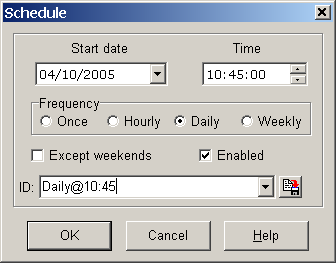
Set the start date to whatever date it is today, or some time in the future if you wish. Set the start time to 00:09:00.
Click the 'Daily' option if it isn't already selected.
Make sure the 'Except weekends' box is checked.
Type in a name for the schedule in the box marked ID such as 'Daily school bell - 9:00', make sure the 'Enabled' box is checked, click the button to the right of the ID box to save the schedule.
Note: Schedules aren't saved as separate files, they're saved as named entries in a common file, usually C:\Documents and Settings\UserName\Application Data\MGCSoft\TikTokToDo\Schedules_TikTokCook.mgcini. Click OK to close the dialog.
If your computer is left permanently on you don't need to do anything else, the sequence will just run daily at the time you specified. Otherwise read the 'Important' item at the top of this page.
Back to setting up the timers.
Copyright© 2004:2006 Gordon