Contents
- Index
- Previous
- Next
Schedule:
Accesses from the main menu Accessories>Schedule
Adding to Windows StartUp
Schedules a timer sequence to start at a specified time and frequency.
Schedules only work with Start/Stop type sequences. That is, when Options>Auto start is unchecked. When the scheduled time is reached, the sequence will start.
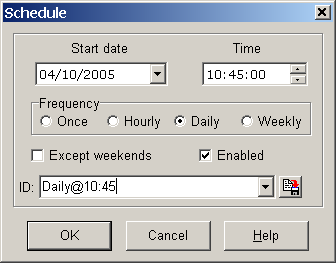
Use the 'Start date' drop down calendar and 'Time' edit box to set the first instance you want the timer sequence to start.
Check the appropriate box to select the frequency and whether or not you want the sequence to start on weekend days as well as weekdays.
Check the Enabled box to enable the schedule.
Select a name for the schedule using the drop down combo box or type in a new name. Click the save button to the right of the combo box if you want to save the schedule to file permanently.
Note: You can set and use schedules without saving to file although you will be prompted to save the currently active one on program exit. If you don't save a schedule you won't be able to recall it by using the combo box drop down list.
Note: There are no checks to verify whether or not the sequence is longer than the frequency. If your last timer is 2 hours from the start time and you select 'Hourly' for the frequency, schedule starts during that time will be ignored.
If you want the program to run each time a machine/computer starts you'll need to add it to your Startup group in Windows. In Windows, from the 'Start' menu select Settings>Taskbar and Start menu. Click the 'Advanced' tab and then click the 'Add' button. Use the browse button to locate the TikTokToDo.exe file which by default is in C:\Program Files\MGCSoft\TikTokToDo, click 'Next'. Scroll down until you see StartUp in the list of folders, click it, click 'Next'. Type a name for the shortcut where indicated if you wish, click Finish then OK. TikTokToDo should now run automatically next time you start up Windows.
If you want TikTokToDo to open a specific file each time TikTokToDo is run, including when running from Windows StartUp, see Auto open a file on the File menu.
Copyright© 2004:2006 Gordon